SRS is the (misused) abbreviation of SSRS ([Microsoft] SQL Server Reporting Services). Yes, that's right; an abbreviation of an acronym. Good grief, folks.
The reason for this short & sweet post is that I see SRS used all the time in certain circles. But if you Google it (or Bing it, whatever your preference), you'll find many other definitions before you come across this one (if you ever do, that is).
Another reason for this post is, of course, that I admittedly once went on a wild goose chase to figure out what someone was asking of me. :)
Tuesday, June 30, 2009

Sunday, June 7, 2009
Introducing the FIM Query Tool
I've had a bit of downtime recently, so I decided to make good on a statement that I made to my colleagues at lunch one day, "I should create an interface for querying the ILM2 web service." Well, I just polished off a first draft and published it to CodePlex. Please take it for a test drive, kick the tires, and leave me some feedback!
FIM Query Tool
As I mention on the CodePlex site, this tool is a Windows Forms front end to the ILM2 enumeration client. It's intended to be a one-stop shop for testing XPath filters on the ILM2 web service. And although it's called 'FIM Query Tool', it's currently written for the only available version of FIM, which is ILM2 RC0. Obviously, I'm expecting this tool to evolve with the technology.
Here's a first glance at the tool.
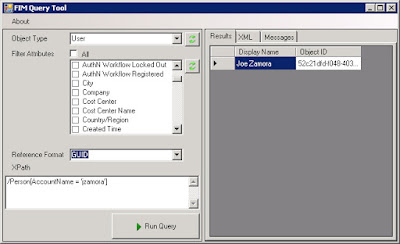
There are a few bells & whistles on this first draft. First, it populates the object & attribute lists when you first run it, but then it caches those lists so that subsequent sessions are faster. If you create a new object or attribute, you can always refresh the schema with the corresponding buttons.
Next, it uses the extensions formerly known as TEIMO (now called MS-WSTIM) to filter the attributes returned from the web service, so that you can cut down on the SOAP message size and save a bit of time on each query.
The tool displays the results in a table, and although it's not obvious in this first draft, you can use Ctrl-A, Ctrl-C to copy all the cells so that you can paste them into Excel. The tool also gives you the raw XML for your perusing pleasure, as well as some verbose messages on separate tabs.
Finally, you can choose to dereference GUIDs when displaying the output. This means that it will resolve GUIDs to their display names, but if you choose this option, you'll get a warning that performance may be poor.
Now let me mention the biggest limitation of the first draft: there's no filter builder to help you with the XPath syntax. Thus, you're sort of on your own when typing up the XPath filter that you'd like to test. I do give you the underlying attribute name when you skate your mouse over the attributes in the list. I hope this helps you out for now.
One quick note on the application settings. You can find all of the settings in the FIMQueryTool.exe.config file. For example, the enumeration endpoint is set to http://localhost:526/... If you have a different URL for your server/port, you'll have to update this in the config file. Note that I set the SOAP message size to the max (maxReceivedMessageSize="0x7fffffff"), but you may want to tweak other settings like WsEnumerationDefaultPull (batch size).
Oh! I forgot to mention that since this project is on CodePlex, you have access to the source code. Enjoy! Try not to blow anything up. :)
As I mentioned, please download it, try it out, and leave me feedback either through the Discussions section of the CodePlex project or on this blog.
FIM Query Tool
As I mention on the CodePlex site, this tool is a Windows Forms front end to the ILM2 enumeration client. It's intended to be a one-stop shop for testing XPath filters on the ILM2 web service. And although it's called 'FIM Query Tool', it's currently written for the only available version of FIM, which is ILM2 RC0. Obviously, I'm expecting this tool to evolve with the technology.
Here's a first glance at the tool.

There are a few bells & whistles on this first draft. First, it populates the object & attribute lists when you first run it, but then it caches those lists so that subsequent sessions are faster. If you create a new object or attribute, you can always refresh the schema with the corresponding buttons.
Next, it uses the extensions formerly known as TEIMO (now called MS-WSTIM) to filter the attributes returned from the web service, so that you can cut down on the SOAP message size and save a bit of time on each query.
The tool displays the results in a table, and although it's not obvious in this first draft, you can use Ctrl-A, Ctrl-C to copy all the cells so that you can paste them into Excel. The tool also gives you the raw XML for your perusing pleasure, as well as some verbose messages on separate tabs.
Finally, you can choose to dereference GUIDs when displaying the output. This means that it will resolve GUIDs to their display names, but if you choose this option, you'll get a warning that performance may be poor.
Now let me mention the biggest limitation of the first draft: there's no filter builder to help you with the XPath syntax. Thus, you're sort of on your own when typing up the XPath filter that you'd like to test. I do give you the underlying attribute name when you skate your mouse over the attributes in the list. I hope this helps you out for now.
One quick note on the application settings. You can find all of the settings in the FIMQueryTool.exe.config file. For example, the enumeration endpoint is set to http://localhost:526/... If you have a different URL for your server/port, you'll have to update this in the config file. Note that I set the SOAP message size to the max (maxReceivedMessageSize="0x7fffffff"), but you may want to tweak other settings like WsEnumerationDefaultPull (batch size).
Oh! I forgot to mention that since this project is on CodePlex, you have access to the source code. Enjoy! Try not to blow anything up. :)
As I mentioned, please download it, try it out, and leave me feedback either through the Discussions section of the CodePlex project or on this blog.
Thursday, June 4, 2009
Create a set with all objects having a non-empty attribute (i.e. XPath filter for 'child exists')
Today I answered a question on the FIM forums, and I thought I'd publish it for reference.
Objective
How can we create a Set of objects whose certain attribute is not blank (meaning that the attribute exists)? For example, how do we create a Set of all people who have a JobTitle assigned? The FilterBuilder won't let you do something like Job Title is not .
Solution
The answer is that we have to edit the Set's XPath filter manually.
But first, a quick note on semantics. :) In FIM we talk about objects and their attributes, but 'attribute' is something different in XML (which is what XPath is operating on). So, the objective for our XPath query is to find all nodes whose child node (of a certain name) is not blank.
Now, if you do an XPath query for /Set[DisplayName = 'Those with job title']/ComputedMember, you'll see all people who do have a job title (provided you don't actually have a job title named 'junk').
Objective
How can we create a Set of objects whose certain attribute is not blank (meaning that the attribute exists)? For example, how do we create a Set of all people who have a JobTitle assigned? The FilterBuilder won't let you do something like Job Title is not .
Solution
The answer is that we have to edit the Set's XPath filter manually.
But first, a quick note on semantics. :) In FIM we talk about objects and their attributes, but 'attribute' is something different in XML (which is what XPath is operating on). So, the objective for our XPath query is to find all nodes whose child node (of a certain name) is not blank.
- We can begin by using the filter builder as a crutch. Create the following filter with the filter builder:
Select people that match all of the following conditions:
Job Title is not junk
If you view membership, it will give you all people who don't have a job title; and the filter will be:
/Person[not(JobTitle = 'junk')] - Finish & submit the Set creation.
- Go back and edit the Set; Click on Advanced View, and change the filter manually to:
/Person[JobTitle != 'junk'] - Finish and submit the changes.
Now, if you do an XPath query for /Set[DisplayName = 'Those with job title']/ComputedMember, you'll see all people who do have a job title (provided you don't actually have a job title named 'junk').
Monday, May 4, 2009
Webinar recording & slides posted
We've posted the video recording of my April webinar, and you can also download the presentation in PDF format.
Ensynch IDA Resources
Note that I've corrected myself since the webinar. The Enumerate Resources activity does indeed work; there's just a trick to making it work. Please find that trick in my previous post.
Ensynch IDA Resources
Note that I've corrected myself since the webinar. The Enumerate Resources activity does indeed work; there's just a trick to making it work. Please find that trick in my previous post.
Thursday, April 30, 2009
Henrik Nilsson's RegexReplaceActiviy
Henrik just made a great post about his RegexReplaceActivity. In it, he shows you how to capture the power of regular expressions (pun intended :).
While you're developing and tuning your regular expressions, it's handy to have a quick way to test them. I'd like to point you to a phenomenal online resource for testing regex patterns:
http://gskinner.com/RegExr/
If you paste Henrik's sample regex pattern into the site, and then type a date into the text box, it'll highlight the pattern that's matched. Then, if you hold your mouse over the highlighted pattern, it'll show you the groups that are captured. Instant gratification!

While you're developing and tuning your regular expressions, it's handy to have a quick way to test them. I'd like to point you to a phenomenal online resource for testing regex patterns:
http://gskinner.com/RegExr/
If you paste Henrik's sample regex pattern into the site, and then type a date into the text box, it'll highlight the pattern that's matched. Then, if you hold your mouse over the highlighted pattern, it'll show you the groups that are captured. Instant gratification!

Tuesday, April 28, 2009
How to use EnumerateResourcesActivity in RC0
Last week during my webinar, I wasn't sure how to use the EnumerateResources or EnumerateResourceIteration activities. I thought I'd tie up some loose ends and try to crack this case. Thanks to Henrik and Nima, I was able to get the EnumerateResourcesActivity to work. Turns out that the Iteration activity will be removed from RTM.
Per Henrik's advice, EnumerateResources has the wrong designer, so when you add the activity to a custom workflow, you'll notice that it's closed and you can't add any children to it.

You can work around this by opening the Designer.cs file and adding a code activity to it manually. First, add a CodeActivity to the class:
Next, add the code activity to EnumerateResources in InitializeComponent, before the last line, "this.CanModifyActivities = false;".
Then, create a "logIteration" method in your main class file, and call the GetCurrentIterationItem method from EnumerateResources:
That's it. Don't forget to bind the XPathFilter property on the EnumerateResourcesActivity. Perhaps I'll add an example to our activity library.
Enjoy!
Per Henrik's advice, EnumerateResources has the wrong designer, so when you add the activity to a custom workflow, you'll notice that it's closed and you can't add any children to it.

You can work around this by opening the Designer.cs file and adding a code activity to it manually. First, add a CodeActivity to the class:
private CodeActivity codeActivity1;
Next, add the code activity to EnumerateResources in InitializeComponent, before the last line, "this.CanModifyActivities = false;".
#region Workaround
this.codeActivity1 = new System.Workflow.Activities.CodeActivity();
//
// codeActivity1
//
this.codeActivity1.Name = "codeActivity1";
this.codeActivity1.ExecuteCode += new System.EventHandler(this.logIteration);

this.enumerateResourcesActivity1.Activities.Add(this.codeActivity1);
#endregion
Then, create a "logIteration" method in your main class file, and call the GetCurrentIterationItem method from EnumerateResources:
private void logIteration(object sender, EventArgs e)
{
    // Log the Resource properties to a string
    StringBuilder buffer = new StringBuilder();
    buffer.AppendLine("TotalResultsCount : " +
        enumerateResourcesActivity1.TotalResultsCount);

    ResourceType currentItem = EnumerateResourcesActivity.GetCurrentIterationItem(
        (CodeActivity)sender) as ResourceType;

    if (currentItem != null)
    {
        // Resource properties
        foreach (KeyValuePair<string, ResourcePropertyInfo> property in currentItem.ResourceProperties)
        {
            // Attribute name
            buffer.Append(property.Key.PadRight(20));
            // Attribute type
            buffer.Append(property.Value.Type.PadRight(20));
            // Value
            object val = currentItem[property.Key];
            if (val != null)
            {
                buffer.AppendLine(val.ToString());
            }
            else
            {
                buffer.AppendLine();
            }
        }
    }

    // Finally, do something with the log message
    string output = buffer.ToString();
}
That's it. Don't forget to bind the XPathFilter property on the EnumerateResourcesActivity. Perhaps I'll add an example to our activity library.
Enjoy!
Friday, April 17, 2009
ILM 2 password client install snafu
I encountered the following error while attempting to install the password reset client from the ILM 2 program folder (C:\Program Files\Microsoft Identity Management\Web Portals\WSSDir\PasswordManagementClient\ilm-client.msi). I couldn't find much help from an internet search, but David Lundell pointed out my problem. It was a silly but honest mistake, so I thought I'd document it.
Office integration requires Smart Tags .Net Programmability Support. Please install it from the Office CDs (under Office Tools) and try again.

It turns out that, in my haste, I had selected all the defaults of the installation, which is an honest mistake. Since I was installing this on the dev server box for testing, I didn't have Office installed, yet I left the Office Integration component selected for install. The simple answer is to deselect this option during install.
.jpg)
Hope this helps!
Office integration requires Smart Tags .Net Programmability Support. Please install it from the Office CDs (under Office Tools) and try again.

It turns out that, in my haste, I had selected all the defaults of the installation, which is an honest mistake. Since I was installing this on the dev server box for testing, I didn't have Office installed, yet I left the Office Integration component selected for install. The simple answer is to deselect this option during install.
.jpg)
Hope this helps!
Subscribe to:
Posts (Atom)